

캐릭터 및 이미지 제작
AI 이미지 생성기 명확한 설명으로 AI 이미지 만들기
계정에서 사용 가능한 크레딧으로 기본 AI 이미지 생성을 체험하세요. 피사체, 동작, 배경, 구도를 설명한 다음 생성된 이미지와 비교해 보세요. 연필 스케치, 펜 선화 또는 디지털 일러스트를 만들려면 프롬프트에 표현 기법을 지정하세요.
무료 계정에서 사용 가능한 시작 또는 획득 크레딧으로 이용 가능한 기본 옵션을 체험하세요. 로그인하고 생성 비용을 확인하세요. 유료 모델 및 요금제 제한은 그대로 적용됩니다.
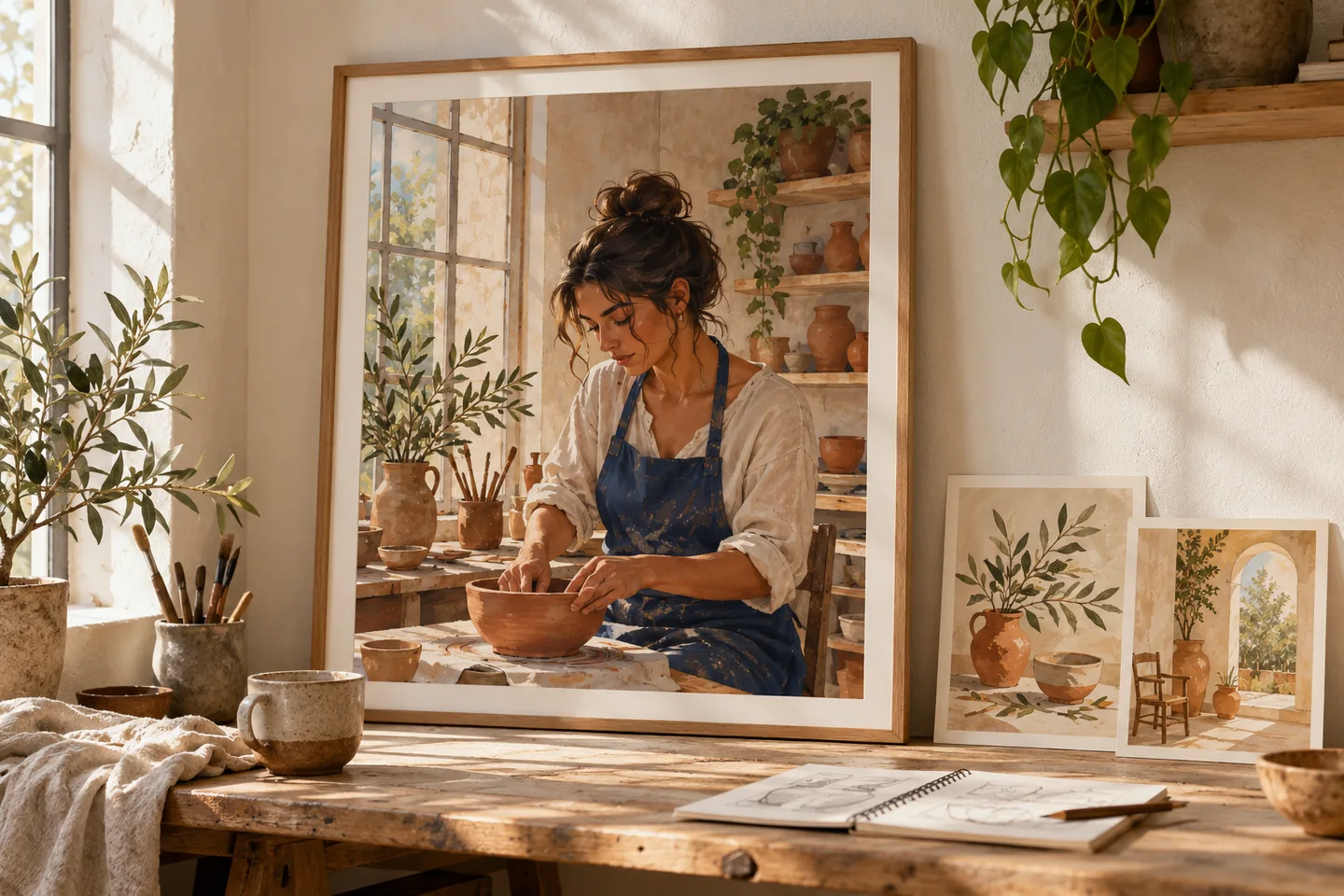
Your workspace
AI 이미지 생성기 사용하기
무료 계정에서 사용 가능한 시작 또는 획득 크레딧으로 이용 가능한 기본 옵션을 체험하세요. 로그인하고 생성 비용을 확인하세요. 유료 모델 및 요금제 제한은 그대로 적용됩니다.
01 / A more useful starting point
Write the scene like a brief
Explain what should be visible, where it belongs in the frame and how the lighting should feel. If the result should look hand-drawn, specify pencil weight, ink outlines, shading and paper texture. Put the essential subject before small decorative details so the first result is easier to judge.
AI 이미지 생성기 사용해 보기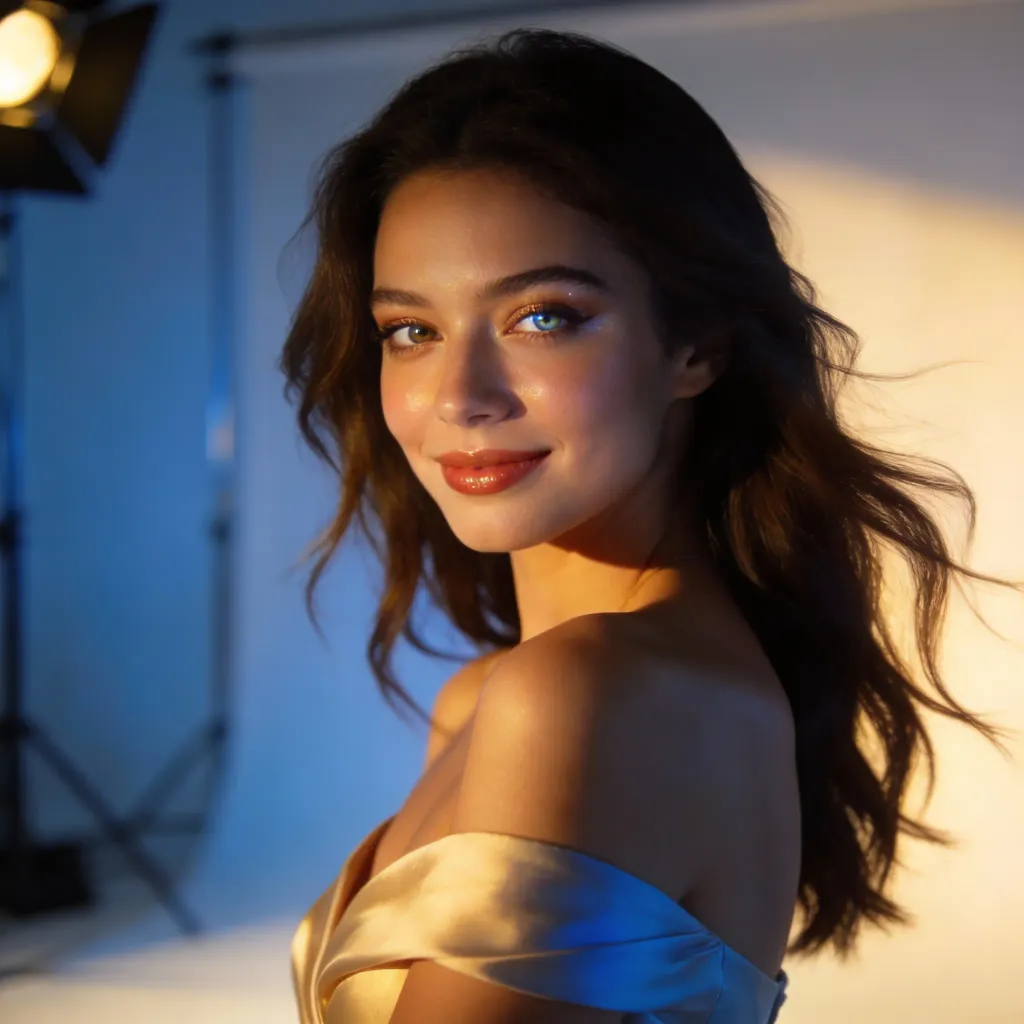
02 / A more useful starting point
Keep a record of what changed
Save the prompt and note the model, canvas and any references you chose. Change a single important detail in the next generation to learn whether the difference came from framing, language or model behavior.
AI 이미지 생성기 사용해 보기
Three practical starting points
Try a brief. Inspect the result. Change one thing.
Try these exercises for AI 이미지 생성기, with concrete details to inspect. These are suggested exercises, not recorded customer projects.
An editorial portrait
Suggested brief
An adult ceramic artist in a cobalt apron beside a sunlit studio window; waist-up portrait, hands resting on a workbench, quiet natural colors.
- What to inspect
- Inspect the hands, apron edges and window light before choosing a favorite.
- What to change next
- Simplify the hand action or crop closer if the pose becomes ambiguous.
A product scene
Suggested brief
A plain unbranded reusable bottle on a pale stone table, soft side lighting, a subtle leaf shadow and space on the left for your own headline.
- What to inspect
- Check the bottle shape, contact shadow and clean area for text.
- What to change next
- Request fewer surrounding objects if the scene competes with the product.
A story environment
Suggested brief
A floating island harbor at dawn with small airships, waterfalls and an adult traveler in the lower-left corner; wide establishing composition.
- What to inspect
- Check the balance between the character and the scale of the harbor.
- What to change next
- Make the subject smaller and describe a wide camera view if the model turns it into a portrait. For a drawing-style variation, request clean ink contours or graphite shading while keeping the same composition.
From input to a useful output
How to use AI 이미지 생성기
Work through a small task first, then keep the steps that help your project.
- 01
Describe the essentials
Choose the subject, action, setting and composition.
Check: Avoid asking for contradictory camera views in one image.
- 02
Set the studio options
Select an available model and canvas; add a reference only when appropriate.
Check: Check credit cost and input support.
- 03
Compare and revise
Look at the output against the original brief.
Check: Keep the prompt, selected model and canvas with your chosen file. Change one detail at a time; a repeated prompt need not reproduce the same image.
- 04
Download the selected version
Use the export options available on your plan.
Check: Review small details and any visible writing before publishing.
Know the boundaries
What to check before you rely on the output
- Available models and output sizes can change. A prompt example does not automatically select a model or reproduce an earlier result.
- AI generation is not a guarantee of exact logos, readable typography or product geometry.
- Generated faces, hands, text and small details can vary. Review the output before using it in a larger project.
AI 이미지 생성기: your questions, answered
Can I upload a reference photo or drawing?
For an AI drawing generator workflow, choose a model that supports image input before uploading a photo or sketch you are permitted to share. Keep the composition visible and describe the intended linework, shading and color. The reference guides the request; it does not guarantee an identical result.
How specific should the prompt be?
Begin with the subject, action, setting, framing and light. Add small details after the main composition works.
Will a sample prompt reproduce its picture?
No. Model, canvas, settings and sampling can change the result. Treat an example as a starting brief.
Can I generate text inside an image?
Models may produce text, but spelling and layout can be unreliable. Check the result and consider adding final typography in an editor.
Can I try it for free?
Try eligible basic generation for free when your account has enough available starter or earned free credits. Sign in and review the model, cost and plan limits first. Each request consumes credits; paid-only options and further generations may require a paid plan or purchased credits.
Can I publish the result?
Use references you own or have permission to use. Publishing and commercial use depend on your plan, the Terms of Use and third-party rights; a generated image does not by itself clear those rights.
Sources and further reading
Check the guidance behind the workflow
Each source is linked with its scope. An external reference is not an endorsement or performance certification.
LlamaGen: reference-image guidelines
First-party public-tool guidance links to reference-image, upload and output-format help. Follow the controls shown by the selected tool; this is not an independent performance review.
LlamaGen content policy
Rules for uploaded references and generated content; this is a product policy, not an independent endorsement.
LlamaGen plans, credits and account support
First-party plan information. Check the selected tool for model access and the cost of each generation; contact support@llamagen.ai for account questions.
Continue your creative project
AI 이미지 생성기
Start with one clear idea.
무료 계정에서 사용 가능한 시작 또는 획득 크레딧으로 이용 가능한 기본 옵션을 체험하세요. 로그인하고 생성 비용을 확인하세요. 유료 모델 및 요금제 제한은 그대로 적용됩니다.
AI 이미지 생성기 사용해 보기